Add the booking widget to any website
Use the website widget when your site can include custom HTML and JavaScript.
Use the hosted CDN
Section titled “Use the hosted CDN”For most sites, add the hosted widget script and the widget element where the booking experience should appear:
<script src="https://booking.odeva.app/widgets/booking.js" defer></script><odeva-booking-widget org="crystal-springs"></odeva-booking-widget>The CDN widget uses the production Odeva Booking API and checkout URL by default.
Full booking flow
Section titled “Full booking flow”If you need to set the endpoints explicitly, pass them as attributes:
<odeva-booking-widget  org="crystal-springs"  api-url="https://booking.odeva.app/graphql"  checkout-url="https://booking.odeva.app/checkout"></odeva-booking-widget>
<script type="module" src="/path/to/odeva-widgets.js"></script>
For an example, see: https://github.com/Odeva-Labs/odeva-examples/tree/main/examples/astro-public-embed
The script path depends on how your site receives the widget bundle. Use the CDN URL above, or use your local/bundled script path if you install or package the widget through your own build pipeline.
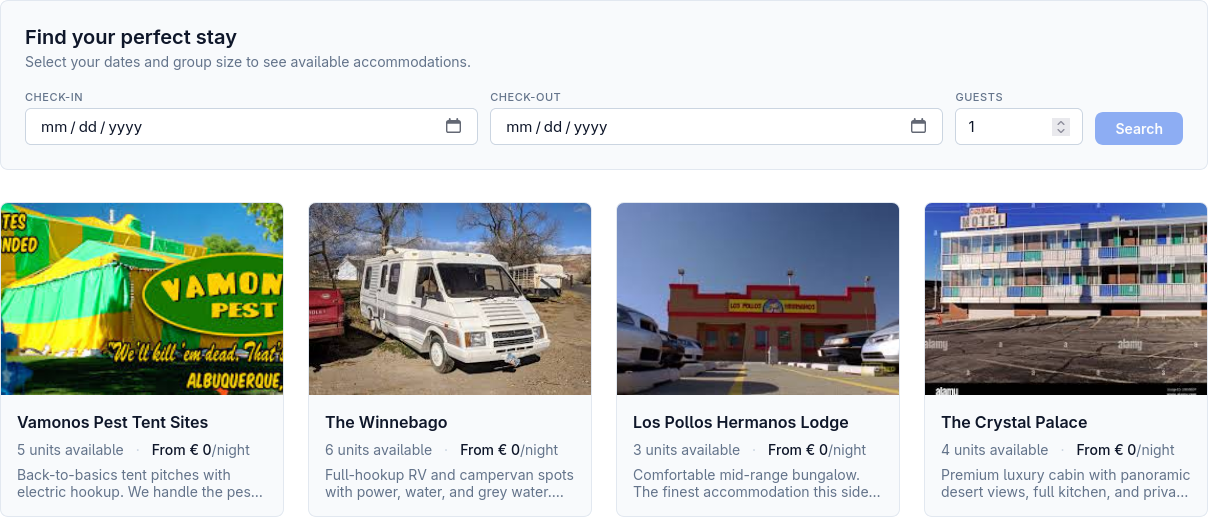
You should now see the widget:
Required attribute
Section titled “Required attribute”org="crystal-springs"The org value tells Odeva which organisation’s accommodation, availability, pricing, and checkout settings to use.
Optional attributes
Section titled “Optional attributes”| Attribute | Use |
|---|---|
api-url | GraphQL API endpoint. Use https://booking.odeva.app/graphql for production. |
checkout-url | Hosted checkout endpoint. Use https://booking.odeva.app/checkout for production. |
accommodation-id | Start directly on a specific accommodation detail view. |
start-date | Pre-fill the check-in date as YYYY-MM-DD. |
end-date | Pre-fill the check-out date as YYYY-MM-DD. |
guests | Pre-fill the guest count. |
return-url | URL guests return to after checkout. |
Match your site style
Section titled “Match your site style”Set CSS variables on the widget or on a parent element:
<style> odeva-booking-widget { --odeva-color-primary: #0f7b57; --odeva-color-secondary: #0b6045; --odeva-color-accent: #d99a2b; --odeva-border-radius: 0.5rem; --odeva-font-family: inherit; }</style>Test before publishing
Section titled “Test before publishing”After adding the snippet:
- Open the page in a private browser window.
- Search dates that should have availability.
- Confirm accommodation cards load.
- Start a booking and confirm the checkout step opens.
- Test on a phone-width screen.
Troubleshooting
Section titled “Troubleshooting”The widget does not appear
Section titled “The widget does not appear”Confirm the widget script is loaded on the page and the script path is correct:
<script src="https://booking.odeva.app/widgets/booking.js" defer></script>If your site builder strips custom scripts, add the script through its approved custom-code area instead of inside the page body.
The widget appears but no accommodation loads
Section titled “The widget appears but no accommodation loads”Check the organisation slug:
crystal-springsAlso confirm the API URL points to production unless Odeva gave you a custom endpoint:
https://booking.odeva.app/graphqlCheckout does not open
Section titled “Checkout does not open”Check the checkout URL:
https://booking.odeva.app/checkoutIf you set a custom return-url, make sure it is a full public URL and not a local development address.
Local testing works but production does not
Section titled “Local testing works but production does not”Confirm production can reach:
https://booking.odeva.app/graphqlhttps://booking.odeva.app/checkoutAlso check browser console errors for blocked scripts, content security policy rules, or mixed-content warnings.